
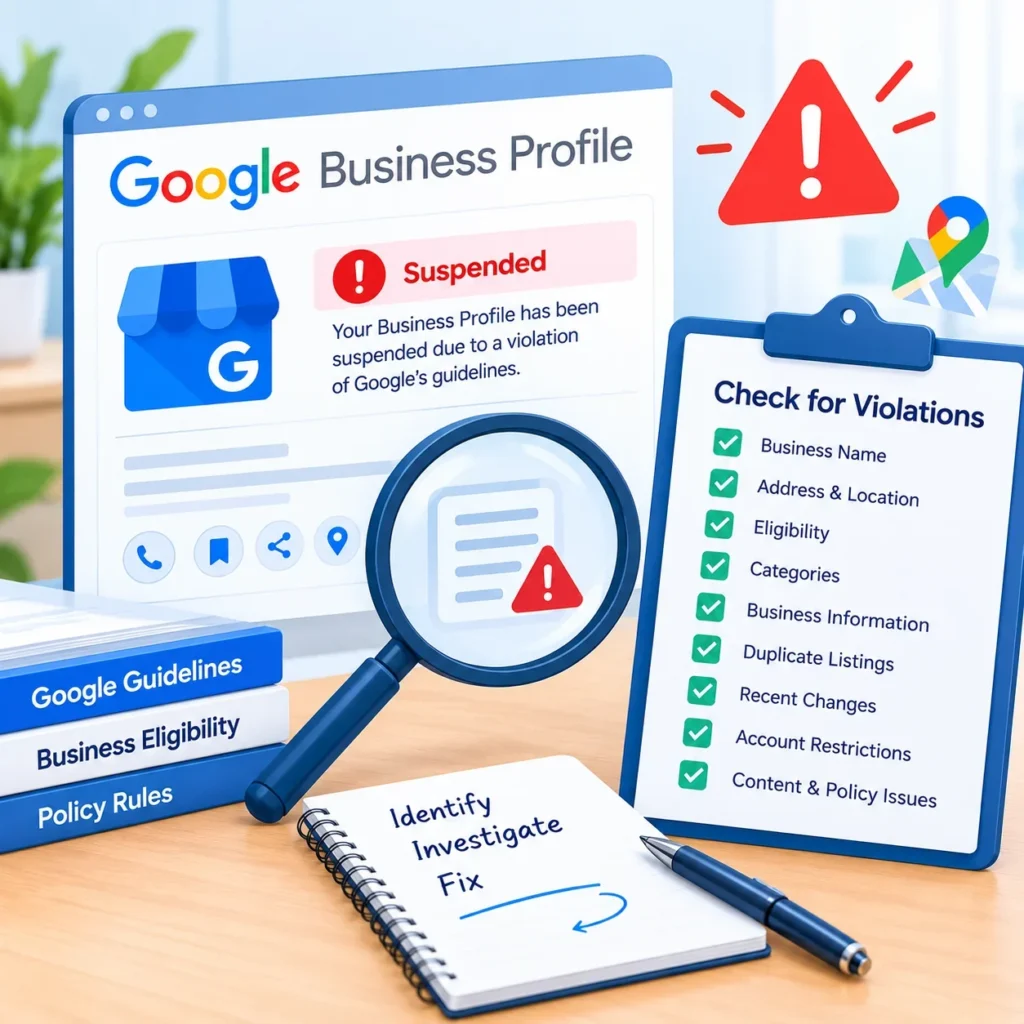
If your Google Business Profile has been suspended, one of the first questions to answer is whether the profile violates Google’s guidelines and, if so, which part of the profile needs attention. A suspension can disrupt your visibility on Google Search and Maps, reduce opportunities to attract local customers, and create uncertainty about how to restore your listing.
However, not every suspension has an obvious explanation. Your business may be legitimate, your information may appear accurate, and you may still be unsure what triggered Google’s decision. Guessing at the cause or changing multiple profile details without a clear reason can make troubleshooting more difficult.
The better approach is to examine the profile systematically. Start with Google’s notification and the information available in the appeals tool, then review your business name, location, eligibility, categories, contact details, and other relevant profile elements against the official guidelines.
This guide explains how to identify possible Google Business Profile guideline violations, distinguish confirmed issues from warning signs, and determine what to investigate before requesting reinstatement.
What Is a Google Business Profile Guideline Violation?
A Google Business Profile guideline violation occurs when a profile, its associated content, or the way the business is represented fails to comply with Google’s applicable requirements.
Google expects Business Profiles to represent real, eligible businesses accurately. The information displayed should reflect the business as it operates in the real world, including its name, location or service area, and the products or services it provides.
Google may suspend or disable profiles that do not comply with its guidelines. Depending on the situation, restrictions may relate to the profile itself, the account managing it, or particular content associated with the business.
Common areas to investigate include:
- Business names that contain information not permitted by Google’s naming rules.
- Addresses that do not accurately represent the business’s real-world location.
- Businesses that do not meet Business Profile eligibility requirements.
- Incorrect or excessive business categories.
- Duplicate profiles for the same business location.
- Inaccurate or misleading business information.
- Content or activity that violates applicable Google policies.
- Account restrictions that prevent the authorized user from managing the profile normally.
These are areas to check, not a definitive list of reasons for every suspension. A profile can have more than one issue, and a visible discrepancy does not automatically prove that it caused the suspension.
For the complete requirements, consult Google’s official Guidelines for representing your business on Google.
1. Start With the Suspension Notification and Available Decision Details
Before editing your profile, determine what information Google has provided about the restriction.
Check the email account associated with your Business Profile and sign in to the Google Account that manages the affected listing. Review any suspension notification, appeal status, or policy information available through Google’s official tools.
Depending on the case, the appeals tool may provide information about the restriction or identify relevant guidelines. The information available can vary, so do not assume that every suspension will include a detailed explanation.
What should you look for?
Review the following details:
- The affected profile: Confirm which business and location are involved.
- The restriction status: Determine whether the profile is suspended, disabled, or affected by another type of restriction.
- Any policy reference: Check whether Google identifies a relevant guideline or provides instructions for resolving the issue.
- The managing account: Determine whether the restriction affects the Business Profile itself or the Google Account used to manage it.
- Available appeal options: Check which actions Google makes available for the specific case.
Record the information before making changes. If Google identifies a particular guideline, use that information to prioritize your investigation.
If the notification is vague, proceed with a structured review of the profile rather than treating the absence of a detailed explanation as proof that the business has done nothing wrong.
2. Check Whether Your Business Is Eligible for a Google Business Profile
One of the most important checks is whether the business qualifies for a Business Profile in the first place.
Google generally requires an eligible business to make in-person contact with customers during its stated hours, subject to specific exceptions. Businesses that operate entirely online without qualifying in-person customer contact generally do not meet the standard eligibility requirements.
Review Google’s official Business eligibility and ownership guidelines before assuming that a suspended profile can be restored simply by changing its information.
Businesses that may have eligibility problems
Potential warning signs include:
- An online-only business that does not have qualifying in-person customer contact.
- A lead-generation company rather than an eligible business serving customers directly.
- A business listing created for a location the business does not own or have the authority to represent.
- A rental property or other listing type that does not qualify for an individual Business Profile.
- A business using an address where it does not actually operate.
- A profile representing an organization that does not meet the applicable eligibility requirements.
The important distinction is between the business’s legal existence and its eligibility for a Google Business Profile.
A registered company may be a legitimate legal entity but still not qualify for a particular listing. Likewise, having a website, business registration, or tax identification number does not automatically establish eligibility.
Questions to ask
Before proceeding, determine:
- Does the business have qualifying in-person contact with customers?
- Does the business actually provide the products or services represented on the profile?
- Is the business eligible under Google’s current rules?
- Does the profile accurately describe the way the business operates?
If the business does not meet the eligibility requirements, correcting its name or uploading additional documents will not necessarily solve the underlying problem.
3. Review Your Business Name for Possible Guideline Violations
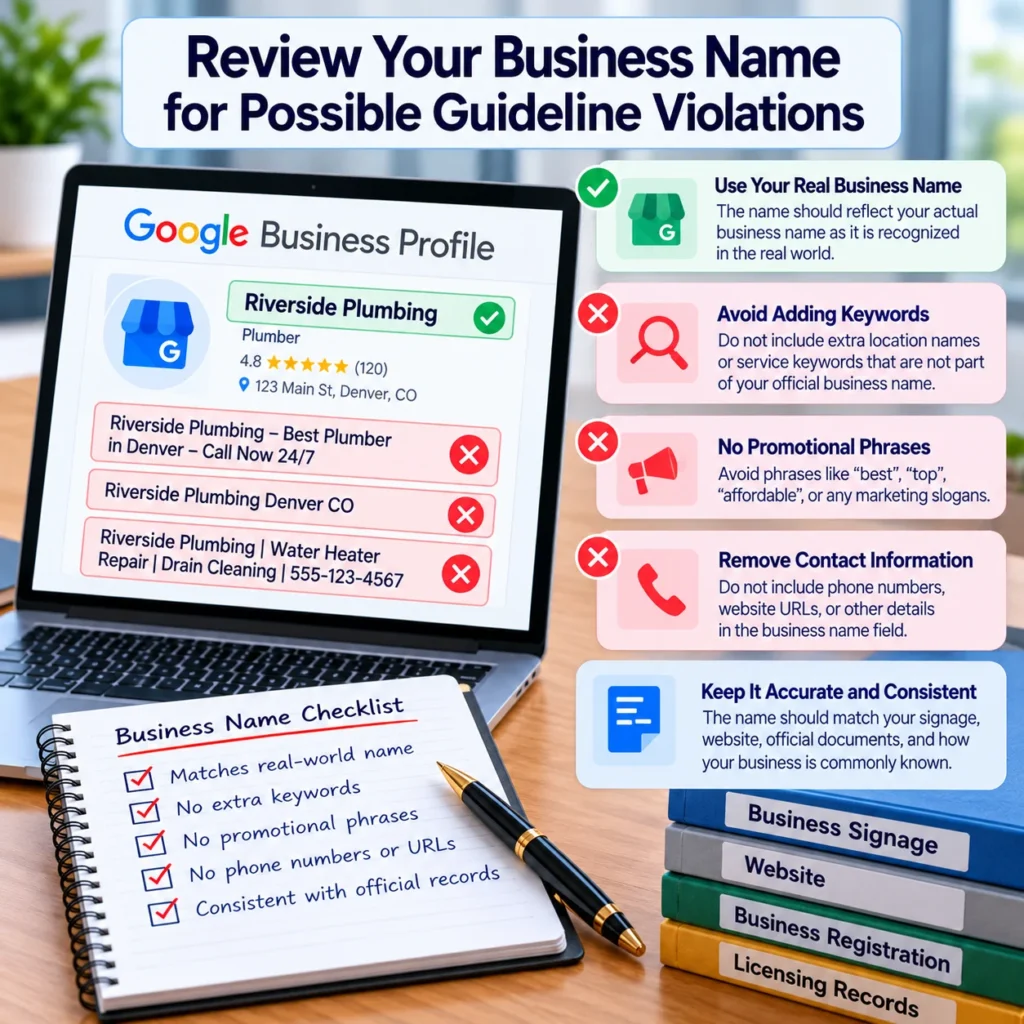
The business name is one of the first profile elements worth checking because it is publicly visible and subject to specific rules.
Google expects the name to reflect how the business is consistently represented and recognized in the real world. The name should match the business’s genuine identity rather than function as an advertising headline or a collection of search terms.
Signs that your business name may be incorrect
Review your name if it includes:
- Extra location keywords that are not part of the real-world business name.
- Service keywords added primarily to improve search visibility.
- Promotional phrases such as claims about being the best or cheapest.
- Phone numbers, website addresses, or other details that belong in separate profile fields.
- Unnecessary punctuation, symbols, or decorative text.
- Other information that does not form part of the business’s actual name.
For example, imagine a business whose real-world name is “Harbor Plumbing.”
A profile named “Harbor Plumbing – Best Emergency Plumber in Downtown – Call Now” may contain promotional or descriptive additions that do not belong in the business name field.
The appropriate name would depend on how the business is genuinely named and represented, not on which version contains the most keywords.
How to verify the correct name
Compare the profile name with legitimate real-world evidence, such as:
- Permanent business signage, where applicable.
- The business’s official website.
- Business stationery and other established branding.
- Official registration or licensing records, where relevant.
- Other consistent representations of the business to customers.
Not every document must use exactly the same wording in every circumstance. For example, a legitimate trading name may differ from the legal entity name. The important point is that the public-facing name must follow Google’s rules and accurately represent the business.
Do not add keywords to the profile name merely because competitors use them. Their presence on another listing does not establish that the practice complies with Google’s guidelines.
4. Verify the Business Address and Location Settings
Location information is another critical area to investigate when diagnosing a Google Business Profile suspension for guideline violations.
Google expects a business to use an accurate address or service area that reflects its actual operations. A location should not be selected merely because it is convenient, ranks well, or provides a presence in a desirable market.
Warning signs involving addresses
Check your profile if:
- The address belongs to a different business.
- The business no longer operates at the listed location.
- The address is incomplete or inaccurate.
- A virtual office or mailing address is being presented as an operating business location.
- The profile displays a private address even though customers are not served there.
- The business cannot demonstrate a legitimate connection to the listed premises.
- Multiple profiles appear to represent the same business at the same location.
Some of these situations can have legitimate explanations, so investigate the actual circumstances rather than assuming that every address difference is a violation.
Storefront businesses
If customers visit your premises, check whether the location accurately represents where the business operates.
Relevant questions include:
- Does the business genuinely operate at the address?
- Can customers visit the location during the stated hours?
- Is the business name represented appropriately at the premises?
- Does the address correspond to the actual business location?
- Does the profile accurately describe the services available there?
Google’s location rules include requirements for businesses that display their addresses publicly. For example, permanent fixed signage is required for businesses showing their address on Google.
A lease or utility bill may support a connection to an address, but it does not automatically establish that the location satisfies every eligibility requirement.
Service-area businesses
A service-area business travels to customers rather than receiving them at its own business address. Examples include plumbers, electricians, cleaners, and other professionals who provide services at customer locations.
If customers are not served at your business address, Google instructs you to remove that address from the public-facing profile and configure an appropriate service area.
Review whether your profile accurately reflects the way the business operates. A home office should not be presented as a customer-facing storefront if customers do not visit it.
For further guidance, consult Google’s official instructions for managing service areas.
5. Examine Your Business Categories and Profile Information
Business categories help Google understand what a business does. They should describe the actual business rather than serve as a way to insert extra keywords into the profile.
An inaccurate category may be a sign that the profile needs correction, particularly when the selected category does not reflect the business’s primary activity.
What to review
Check the following fields:
- Primary business category.
- Additional categories.
- Business description.
- Services and products.
- Phone number.
- Website.
- Opening hours.
- Service area.
- Other relevant business attributes.
Ask whether each field accurately reflects the real business and whether the information belongs in that particular field.
Avoid using categories as keywords
For example, a company providing plumbing services should select the category that best represents its core business rather than add unrelated categories solely to appear in more searches.
Google recommends choosing the fewest categories needed to describe the business’s overall core activity.
Do not select categories because they describe nearby competitors, related businesses, or services the company does not provide.
Check for misleading information
Look for statements that exaggerate the business’s capabilities or describe services it does not offer.
If the business description contains unrelated promotional content, links, or other information prohibited by Google’s rules, review and correct it.
The goal is not to remove every detail that might be useful for marketing. It is to ensure that each field accurately represents the business and follows the applicable requirements.
6. Check for Duplicate Profiles
Multiple listings can create confusion about which profile represents the actual business location.
Google generally permits one Business Profile per business location, subject to its specific rules and exceptions. Duplicate profiles can cause information to display incorrectly and may require consolidation or another appropriate resolution.
Possible signs of a duplicate
Investigate if you find:
- Two profiles representing the same business at the same address.
- A new listing created after a suspension or verification problem.
- An old listing that remains active after the business moved.
- Multiple profiles with slightly different business names but the same operating location.
- Listings created by different managers without coordination.
- A profile that appears to duplicate another listing already managed by the business.
A similar name does not automatically mean that two profiles are duplicates. Separate eligible businesses, practitioners, or departments may qualify for distinct profiles under Google’s rules.
Check the underlying facts, including the business identity, location, and relationship between the listings.
Do not create a replacement profile to bypass a suspension
If a profile is suspended, creating another listing for the same business is not a reliable solution. Google advises businesses not to create a new Business Profile for the same business while an appeal is under review.
Instead, determine whether an existing listing is the correct profile and follow the appropriate process for resolving the restriction.
7. Review Recent Changes to the Profile
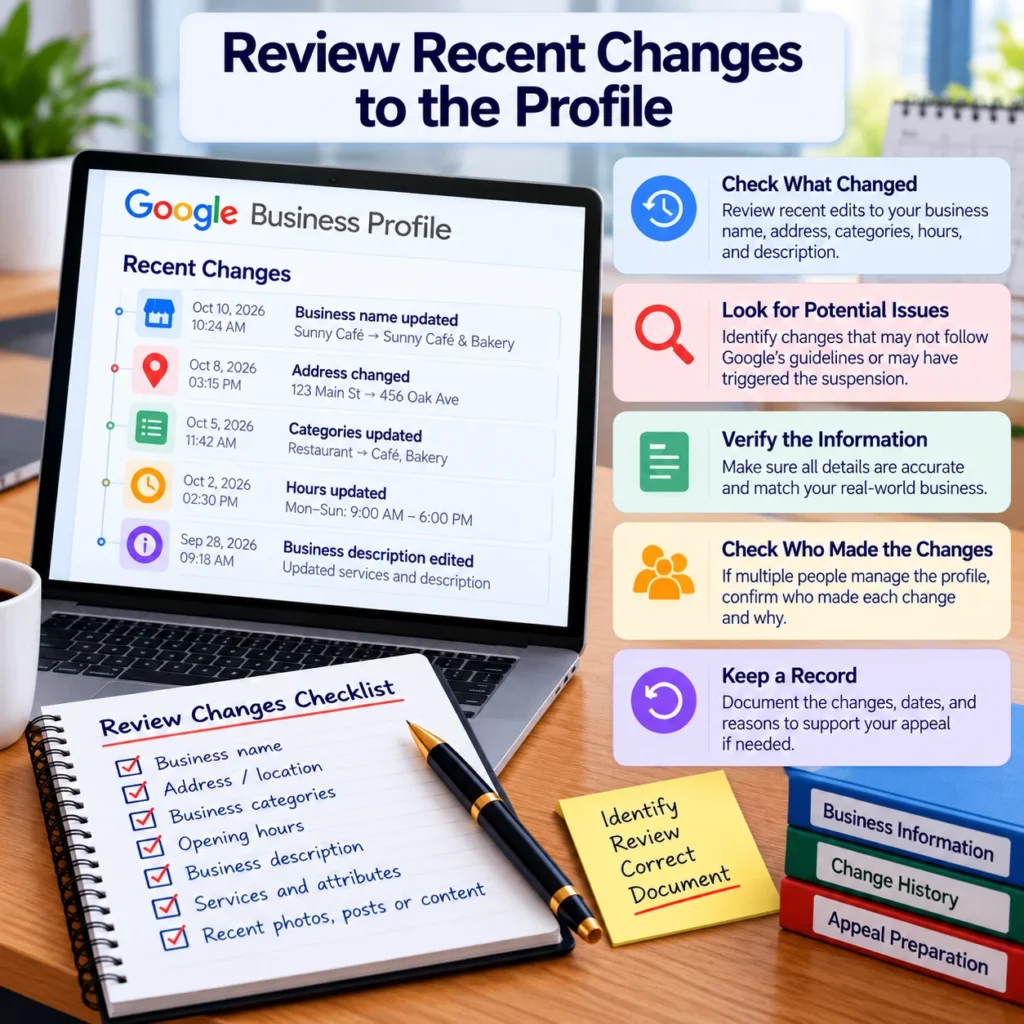
If the suspension appeared after you edited your listing, the timing may provide a useful clue. However, a change that occurred shortly before a suspension is not necessarily the cause.
Review the changes made before the restriction and compare them with Google’s requirements.
Potentially relevant changes include:
- Editing the business name.
- Changing the address or map pin.
- Adding or removing categories.
- Changing the business model from a storefront to a service-area business.
- Adding services that do not reflect the actual business.
- Creating another profile for the same location.
- Making substantial changes to the business identity.
Create a simple change history
If multiple people manage the profile, ask them what they changed and when.
Record:
| Item | What to establish |
|---|---|
| Change made | Which field or setting was modified? |
| Date | When did the change occur? |
| Reason | What legitimate business reason prompted it? |
| Evidence | Which records support the updated information? |
| Current status | Does the information still accurately represent the business? |
This review can help narrow the investigation, especially if the profile underwent several changes shortly before the suspension.
However, do not conclude that the most recent edit caused the restriction without additional evidence. The underlying issue may have existed before the change, or the timing may be coincidental.
8. Determine Whether the Restriction Concerns the Profile or the Managing Account
Not every problem affecting a Business Profile is caused by an error in the public listing.
Google’s policies also address restrictions on accounts used to manage Business Profiles. When a Google Account is restricted, contributions made through that account may be rejected, and the account restriction may need to be resolved before profile-related actions can proceed.
This distinction matters because changing the business name, address, or category will not necessarily resolve an account-level restriction.
What should you check?
Determine whether:
- The affected Google Account can access other services normally.
- Other Business Profiles managed by the same account are also affected.
- Google has sent a notification about account restrictions.
- The issue appears to involve the managing user rather than the business information itself.
- The official tools identify a profile restriction, account restriction, or another type of moderation action.
These observations are clues, not definitive proof. A single account managing multiple profiles may encounter different issues across those listings.
If the available information indicates an account-level restriction, follow the relevant official instructions rather than repeatedly editing the business profile.
9. Check Whether Content or Other Policy Issues Are Involved
Google Business Profile policies cover more than the core business name and address. They also apply to content associated with the profile, including certain posts, photos, videos, and reviews.
However, it is important to distinguish a content moderation decision from a suspension of the entire Business Profile.
For example, an individual photo or post may be rejected without the entire profile being suspended. Conversely, Google may restrict a profile or account in response to certain policy violations.
Review the type of restriction
Ask these questions:
- Is the entire profile suspended or disabled?
- Was only a particular post, photo, or other item rejected?
- Does the notification refer to a content policy or profile eligibility?
- Is the restriction associated with the managing account?
- Does the official tool provide a specific appeal route for the decision?
This prevents you from applying the wrong troubleshooting process.
Do not confuse negative reviews with guideline violations
A business receiving critical or unfavorable reviews does not, by itself, establish that its Business Profile violates Google’s guidelines.
Likewise, a business should not assume that a suspension is caused by competitors simply because the restriction occurred after a period of negative reviews.
Focus on the information Google provides and the profile’s actual compliance. If the issue concerns a review or another piece of content, follow the relevant moderation process rather than treating every content dispute as a profile suspension.
10. Use an Evidence-Based Checklist to Identify the Issue
After reviewing the main areas, consolidate your findings before making further changes.
The checklist below can help organize your investigation.
| Area | Questions to investigate | Evidence or action |
|---|---|---|
| Business eligibility | Does the business qualify for a Business Profile? | Review the eligibility guidelines and actual operating model. |
| Business name | Does the name reflect the real-world business name? | Compare established branding and relevant official records. |
| Address | Does the location reflect where the business actually operates? | Check location records and how customers are served. |
| Service area | Does the profile accurately represent the areas served? | Compare the settings with the actual service area. |
| Categories | Do the categories describe the core business? | Remove inaccurate or unnecessary categories where appropriate. |
| Business information | Are the details accurate and current? | Verify the website, phone number, hours, and description. |
| Duplicate listings | Does another profile represent the same location? | Identify the relationship between existing listings. |
| Recent changes | What changed before the suspension? | Review available change records and supporting documents. |
| Managing account | Is there an account-level restriction? | Check account notifications and official status information. |
| Content | Is the decision about the profile or an individual item? | Review the specific restriction and available appeal route. |
Mark each finding as one of the following:
- Confirmed issue: You have identified information that does not comply with the applicable guidelines.
- Potential issue: You have found a discrepancy that needs further verification.
- No issue identified: Your review has not found a problem in that area.
- Unknown: You do not yet have enough information to reach a conclusion.
This classification is useful because it prevents assumptions from turning into unnecessary profile changes.
If you find several possible problems, prioritize those that are directly supported by the notification, the official guidelines, or reliable evidence.
11. What to Do After Identifying a Possible Guideline Violation
Once you have identified a likely issue, determine the appropriate correction before submitting an appeal.
The exact response depends on what you found. A business name that contains prohibited additions requires a different correction from an inaccurate address or an ineligible business model.
Correct the underlying information
Make changes only when they reflect the actual business and comply with Google’s rules.
Examples include:
- Correcting an inaccurate business name.
- Updating incorrect operating hours.
- Fixing an address that does not reflect the real location.
- Configuring an eligible service-area business correctly.
- Removing categories that do not describe the business.
- Resolving a genuine duplicate-listing issue through the appropriate process.
Do not make speculative changes to fields that are already accurate.
Gather relevant evidence
After addressing confirmed issues, prepare documentation that supports the business’s identity, location, or operating model as appropriate.
The evidence should be authentic, relevant, and consistent with the profile.
For a detailed breakdown of suitable documents and how to prepare them, see Google Business Profile Reinstatement: What Evidence Do You Need?.
Follow the official reinstatement process
If the profile is suspended and you believe it complies with Google’s guidelines, follow the official instructions for requesting reinstatement.
Google advises businesses to review the guidelines before appealing and to prepare their evidence in advance. The official Fix suspended or disabled profiles guidance explains the relevant process.
Do not create a new profile for the same business as a workaround. Follow the process associated with the affected listing.
12. How to Avoid Misdiagnosing a Google Business Profile Suspension
A methodical investigation is more useful than trying every possible fix.
Several mistakes can make diagnosis less reliable.
Assuming that the last edit caused the suspension
Timing may provide a clue, but it does not prove causation. Review the actual change and the applicable rule before deciding what to correct.
Treating every discrepancy as a violation
Legal names, trading names, historical addresses, and business structures can differ for legitimate reasons. Verify the relationship before concluding that the profile is inaccurate.
Copying competitors
Another business’s profile is not proof that its setup complies with Google’s rules. Competitors may have different circumstances, or their listings may themselves be inaccurate.
Changing several fields at once
Multiple simultaneous edits make it harder to identify which information was incorrect. When possible, investigate and document each issue before making necessary corrections.
Assuming that documentation alone resolves every problem
Official records can support the legitimacy of a business, but they do not automatically establish that every profile field is accurate or that the business meets the location requirements.
Repeatedly submitting appeals without a clear basis
Review the available decision and correct confirmed issues before appealing. Google advises against submitting multiple appeals for the same issue before receiving a decision.
If Google denies an appeal, the appropriate next step depends on the available review options and the evidence you can provide. See the separate guide What to Do When a Google Business Profile Appeal Is Denied only if you need help with that later stage; this article focuses on identifying the issue before appeal.
13. When Should You Seek Professional Help?
Professional assistance may be useful when the restriction is unclear, the profile has several inconsistencies, or the business cannot determine which policy requirements apply.
An experienced provider may help you:
- Review the profile against the relevant guidelines.
- Identify discrepancies in business information.
- Distinguish possible policy issues from unrelated changes.
- Assess the relevance of supporting documentation.
- Organize a factual explanation for the reinstatement process.
- Avoid unnecessary edits or duplicate-profile attempts.
Before hiring a provider, ask what they believe the issue is, what evidence supports that assessment, and what work they will perform. Be cautious of anyone who promises guaranteed reinstatement or claims to control Google’s decision.
MapRepute provides independent assistance with Google Business Profile issues, including troubleshooting, policy-related reviews, and appeal preparation. The aim is to help businesses understand the situation and prepare an appropriate response—not to promise a particular outcome.
If you need help reviewing a suspended profile, visit MapRepute to learn about the available services.
Google makes the final decision about restrictions and reinstatement. Professional assistance cannot guarantee that a profile will be restored.
Frequently Asked Questions
What are the most common Google Business Profile guideline violations?
Areas worth checking include business name accuracy, location eligibility, address settings, business categories, duplicate profiles, and misleading information. The relevance of each issue depends on the business and the circumstances of the suspension.
How do I know which Google Business Profile guideline I violated?
Start with the suspension notification and any policy information available through Google’s official appeals tool. If the exact issue is not identified, review the profile against Google’s official guidelines and classify findings as confirmed, potential, or unknown rather than assuming a particular violation caused the suspension.
Can an incorrect business name cause a Google Business Profile suspension?
A business name that includes prohibited information or does not accurately represent the real-world business may violate Google’s guidelines and could contribute to suspension. Check the actual name against established business branding and the official naming rules before making corrections.
Can using a virtual office cause a suspension?
A virtual office where the business rents a mailing address but does not actually operate is not eligible as a Business Profile location under Google’s address guidelines. However, whether this is relevant to a specific suspension depends on the actual circumstances and the information associated with the listing.
Does a service-area business need to display its address?
If the business does not serve customers at its business address, Google instructs it to remove the address from the profile and list an appropriate service area instead. The settings should reflect the real way the business operates.
Can changing my Google Business Profile trigger a suspension?
A change may reveal or introduce an issue if the resulting profile does not comply with Google’s rules. However, a suspension that occurs after an edit does not prove that the edit caused it. Review the changed information and the relevant guidelines before drawing conclusions.
Should I edit my profile before submitting an appeal?
Correct confirmed inaccuracies and address genuine policy issues before appealing. Avoid making speculative changes to information that is already accurate. Follow Google’s current reinstatement instructions for the affected profile.
Can a professional service guarantee that my profile will be reinstated?
No independent service can guarantee Google’s decision. A provider may help identify possible issues, review supporting evidence, and prepare an appeal, but Google retains control over the reinstatement process.
Final Thoughts
Identifying a Google Business Profile suspension for guideline violations requires more than guessing which setting may have caused the problem. Start with the available decision details, verify that the business is eligible, and examine the name, address, categories, profile information, duplicate listings, and account restrictions systematically.
Separate confirmed violations from possible issues and unknowns. Correct genuine inaccuracies, preserve relevant records, and prepare supporting evidence before following Google’s official reinstatement process.
A careful diagnosis cannot guarantee reinstatement, but it can help you avoid unnecessary changes, focus on the issues that matter, and make better-informed decisions about the next step.
