
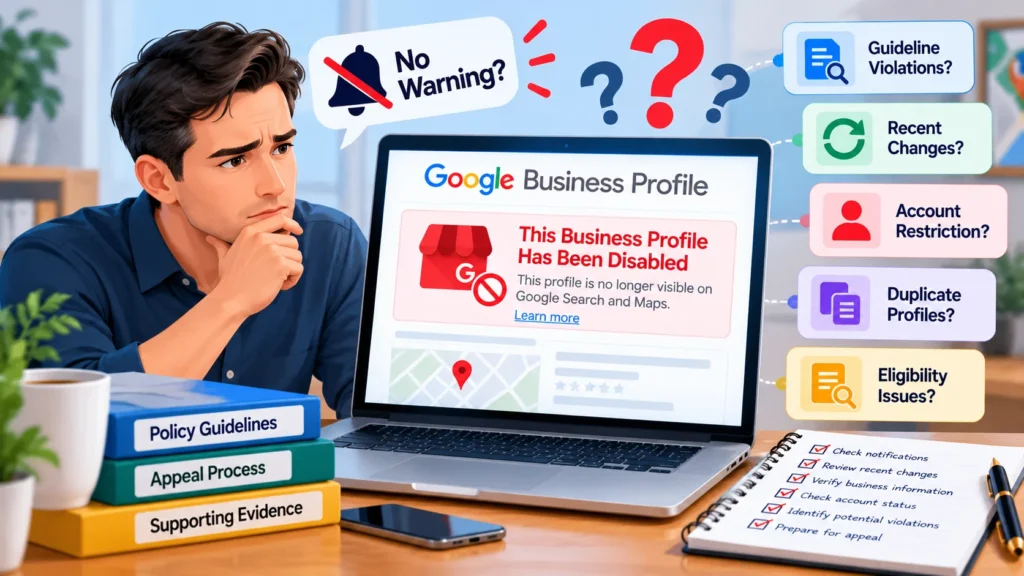
If your Google Business Profile was disabled without warning, you may suddenly find that customers can no longer access your listing, your business information has disappeared from Google Search or Maps, or you can no longer manage the profile as usual. This can be particularly stressful when your business depends on local visibility to generate calls, visits, bookings, and leads.
A profile being disabled does not necessarily mean that Google sent no notification at all. You may have missed an email, the notice may have gone to another account, or the restriction may be connected to a Google Account rather than only to an individual Business Profile. In other cases, Google may have taken a moderation action without a warning that you noticed beforehand.
The important first step is to identify what was disabled, what information Google provides about the decision, and whether your business profile or account needs to be reviewed. Guessing at the cause or immediately creating another listing can make the situation harder to resolve.
This guide explains why a Google Business Profile may be disabled without an obvious warning, how to investigate the possible cause, and what to do before submitting an appeal.
What Does It Mean When a Google Business Profile Is Disabled?
A disabled Google Business Profile is not simply a listing that has temporarily dropped in local search rankings. It can involve a restriction that prevents the public from accessing the profile and prevents its owners or managers from managing it normally.
Google uses different moderation actions depending on the situation. A profile may be suspended or disabled because it does not comply with Business Profile guidelines. Separately, Google may restrict the Google Account associated with a profile, which can affect multiple listings managed through that account.
These situations require different investigations.
A Disabled Profile
If the restriction applies to an individual Business Profile, the issue may concern the business’s eligibility, the accuracy of its information, or compliance with Google’s guidelines.
For example, the business name, address, operating model, or other profile details may need to be reviewed. A listing can also require further investigation when the information presented to Google does not clearly establish that the business is eligible to maintain a profile.
A Restricted Google Account
Sometimes the problem is not limited to one listing. Google explains that when an account is restricted from Business Profile activity, all Business Profiles associated with that account may be suspended.
This distinction matters if you manage several locations and suddenly lose access to more than one profile. In that situation, appealing each listing independently without checking the account-level restriction may not address the underlying issue.
You should also confirm that you are signed in to the correct Google Account. Losing access to a profile because you are using the wrong account is different from having the profile itself disabled.
For official details, see Google’s guidance on fixing suspended or disabled Business Profiles.
Why Was My Google Business Profile Disabled Without Warning?
There is no single explanation for every unexpected disablement. Google may take action when a profile violates its guidelines, and account-level restrictions can affect the profiles managed through an account. The exact reason should be investigated through the available moderation information rather than assumed from the timing alone.
1. Google Detected a Possible Guideline Violation
One possible explanation is that Google’s moderation systems identified information or activity that may not comply with its Business Profile policies.
Potential issues include a business name that contains unnecessary promotional wording, an address that does not accurately represent the business, an ineligible business model, or duplicate listings that create confusion about which profile represents the real business.
A violation is not always obvious to the business owner. The profile may have been created long ago, and an information field that once seemed acceptable may no longer accurately reflect the business.
That does not mean every sudden disablement proves a violation occurred. It means that policy compliance is one of the first areas worth checking.
To investigate this possibility, review the Google Business Profile guideline violations checklist. Focus on the actual business information and eligibility requirements instead of making random edits.
2. A Recent Profile Edit May Have Triggered Additional Review
A change to your business name, address, primary category, website, phone number, or other profile information may be relevant when investigating a sudden restriction.
For example, you may recently have:
- Changed the business name to include additional keywords.
- Updated the address after relocating.
- Changed the primary category to a different business type.
- Modified the service-area settings.
- Updated several important details at once.
- Changed information that no longer matches your official business records.
A recent change does not automatically cause a suspension, and the timing alone does not establish that the edit was responsible. However, comparing the current profile with its previous state can help identify inconsistencies that deserve attention.
Write down what changed, when it changed, and who made the change. Compare the details with the information customers see in the real world and the documentation available for your business.
Avoid making additional changes simply to test whether the profile becomes active again. First establish which information is inaccurate or inconsistent and what correction, if any, is justified.
3. Your Business May Not Clearly Meet Google’s Eligibility Requirements
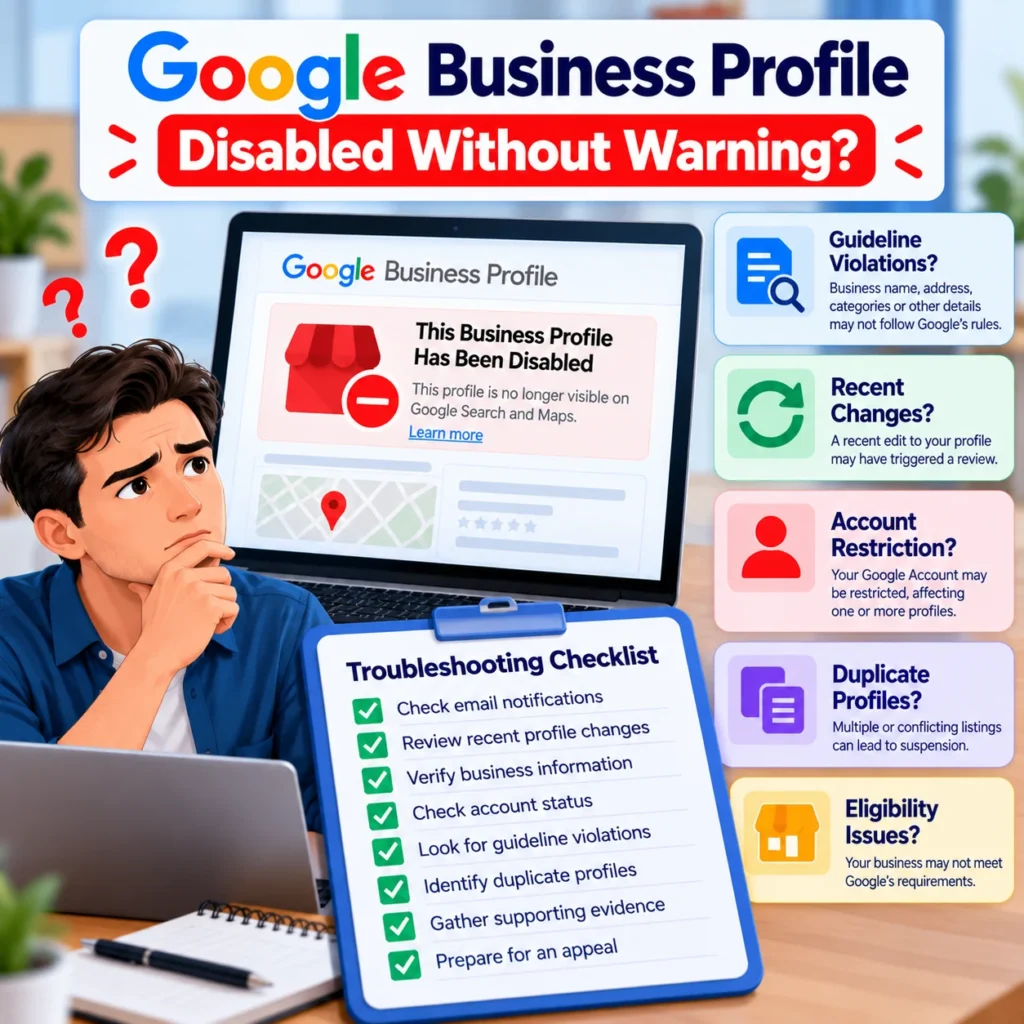
Google Business Profiles are intended for eligible businesses that meet Google’s requirements for representing themselves on the platform.
A business may have difficulty establishing eligibility if it does not conduct the type of in-person customer contact required by the guidelines, uses an address that does not qualify, or presents a business model that is not eligible for a profile.
This can be especially relevant to businesses that operate from home, travel to customers, use coworking spaces, or have recently changed their operating model.
For a service-area business, the important question is not simply whether it has a public storefront. The business must accurately represent its real operating model and follow the applicable address and service-area rules.
Check whether:
- The business is eligible for a Google Business Profile.
- The address reflects a legitimate business location under Google’s rules.
- A residential address is being displayed when it should be hidden.
- A virtual office or coworking address is being used in a way that does not meet the guidelines.
- The profile describes the business’s actual services and operations.
Do not invent a storefront or use an address merely because it appears more credible. Your profile should reflect the real business.
4. Your Google Account May Have Been Restricted
If several profiles became unavailable at roughly the same time, investigate the Google Account used to manage them.
Google identifies account restrictions as a possible reason for Business Profile suspensions. A Google Account that is disabled, suspended, or otherwise not in good standing can also prevent normal access to Business Profile features.
Check whether you can sign in to the relevant Google Account and whether Google has displayed any account-related warnings or restrictions.
Also review whether the account manages multiple locations and whether other users with owner or manager access are experiencing the same problem.
If the account itself is restricted, resolving the profile-level issue alone may not be enough. Google indicates that the account restriction must be addressed before the affected Business Profile suspensions can be resolved through the normal reinstatement process.
Do not assume that every account restriction is caused by the same issue. Investigate the actual notice and follow the instructions provided for the affected account.
5. Multiple Profiles or Conflicting Business Information May Be Involved
Duplicate profiles and inconsistent business information can complicate a review of your listing.
For example, your business may have an older profile, a newer profile created during a relocation, or another listing managed by a former employee or marketing agency. The profiles may contain conflicting addresses, phone numbers, names, or business details.
This does not mean that every business with multiple locations has a problem. Legitimate businesses can have separate profiles for eligible locations. The concern is whether each profile accurately represents an eligible business or location and complies with Google’s rules.
Review any other profiles associated with the business. Check whether an old location is still active, whether a duplicate was created accidentally, and whether the current listing accurately represents the business.
Do not create another profile for the same business as a workaround while an appeal is under review. Google explicitly advises against creating a new Business Profile for the same business during this process.
6. A Previous Policy Issue May Still Be Relevant
A profile can be disabled even if you have not made any changes recently. The absence of a recent edit does not establish that the profile is compliant, nor does it prove that Google acted incorrectly.
Review the history of the listing, including previous name or address changes, eligibility questions, earlier suspensions, and any policy notices you received.
If an employee, agency, or previous owner managed the profile, ask whether they made changes or received messages that were not forwarded to you.
Look for a factual explanation supported by records rather than trying to identify a cause from timing alone.
7. You May Have Missed the Notification
Sometimes the issue is not that Google sent no notice, but that the notice was not seen by the person investigating the problem.
The relevant message may have gone to the Google Account associated with the profile rather than your everyday business email. It may also have been overlooked among other messages, sent to spam, or received by another authorized owner.
Check:
- The inbox of the Google Account that owns or manages the profile.
- Spam and other filtered folders.
- Emails from Google Business Profile or related Google support services.
- Messages received by other profile owners and managers.
- Any account-security or account-restriction notifications.
Make sure you are checking the account associated with the affected listing, not just the email address you normally use for business correspondence.
If you cannot find a warning, do not conclude that there is no appealable decision. Continue to the official appeals tool to check what information is available for the profile.
How to Find Out Why Google Disabled Your Profile
Rather than guessing, follow a structured investigation.
Step 1: Sign In to the Correct Google Account
Open the Google Account associated with the affected Business Profile. If you manage several businesses or have multiple Google Accounts, verify that you are using the account that owns or manages the listing.
Check whether the account itself is accessible and whether any restrictions appear outside the Business Profile interface.
If you are signed in to the wrong account, the profile may not appear in the place where you expect to find it.
Step 2: Check the Google Business Profile Appeals Tool
Open the Google Business Profile appeals tool.
Select the relevant Business Profile and inspect the decision details available in the tool. Google states that the tool can display information such as the moderation decision, the reason for the decision, a link to the violated policy, whether the decision can be appealed, and the status of the appeal.
The information shown depends on the situation. If a reason or policy link is available, use it to guide your investigation.
Record the details before making further changes. This helps you distinguish a documented policy issue from a suspected cause based on recent activity.
Step 3: Review the Profile Against the Relevant Policy
Once you have identified the policy or area of concern, inspect the actual profile details.
Review the business name, address, primary category, operating model, service areas, website, phone number, and other information relevant to the identified issue.
Compare these details with your official records and how the business operates in reality. If the problem concerns eligibility, changing the wording of the profile will not make an ineligible business eligible.
The goal is to identify a real discrepancy or demonstrate that the profile complies with the applicable requirements.
Step 4: Determine Whether the Issue Is Profile-Level or Account-Level
If only one listing is affected, start by investigating that profile. If multiple profiles managed by the same account were suspended, check for an account-level restriction.
These are different situations, and they may require different appeal steps.
Google explains that an account restriction can result in the suspension of all Business Profiles associated with the restricted account. If that applies to your situation, address the account restriction first and then follow the applicable process for the affected profiles.
Step 5: Gather Records Before Appealing
Collect the documents and information that support your explanation.
Depending on the business and the issue, useful records may include:
- Official business registration.
- A business license, where applicable.
- Tax certificates.
- Utility bills associated with the business.
- Photographs of legitimate business premises or signage, where relevant.
- Records showing the correct business name and address.
- A timeline of recent profile changes.
- Copies of relevant Google notifications.
Not every case requires every document. Select evidence that addresses the actual reason for the restriction.
Google recommends that supporting documents match the business name and address on the profile. Inconsistent records may make it harder to establish that the profile represents the business accurately.
What Should You Do After Your Google Business Profile Is Disabled?
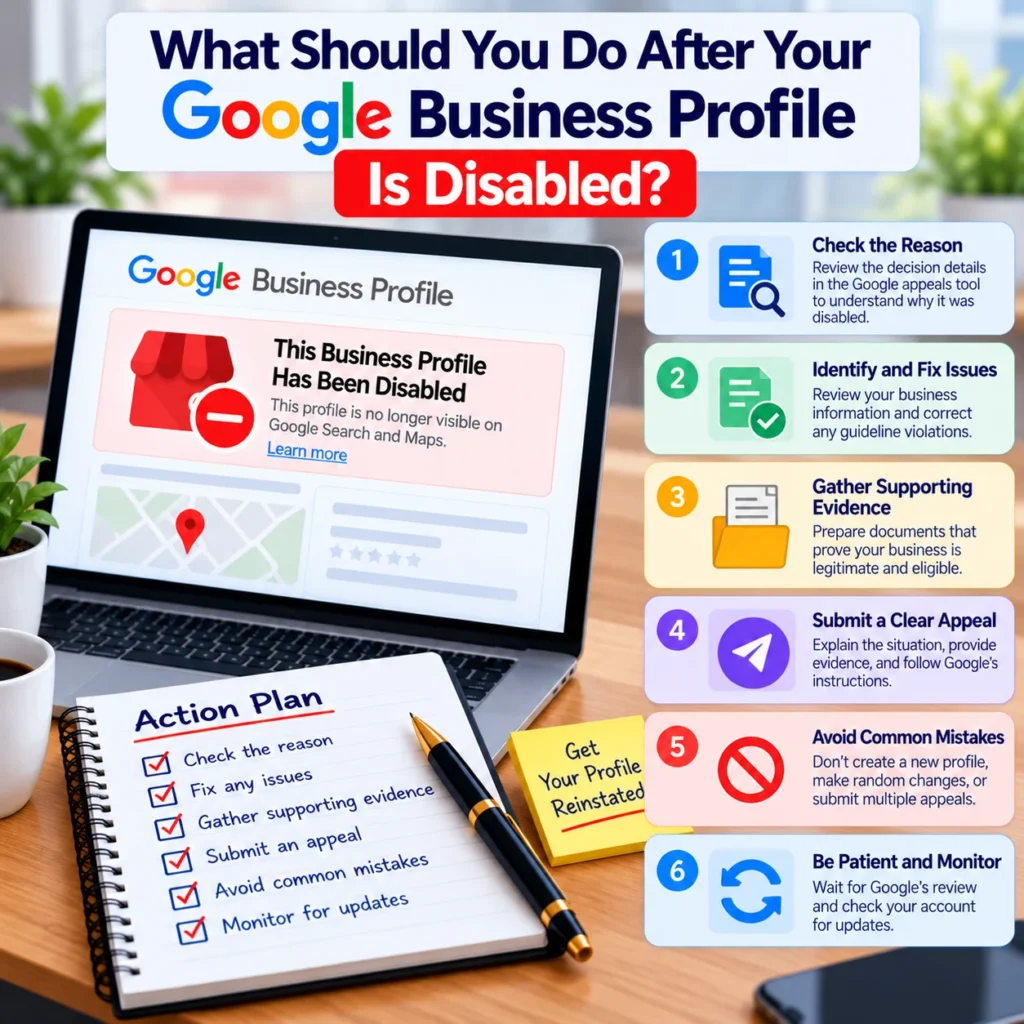
Once you have investigated the cause, take the next step based on what you found.
Correct Verifiable Issues First
If you identify inaccurate or noncompliant information, determine what needs to be corrected and make sure the proposed correction reflects the real business and Google’s guidelines.
Do not make unrelated edits in the hope that one of them will restore the profile. Avoid changing the business name, address, categories, and other fields repeatedly without understanding the issue.
If the profile already complies with the relevant requirements, do not invent a correction merely to show that you have changed something. Instead, gather evidence that supports your position.
Prepare a Clear, Evidence-Based Appeal
If the profile is eligible for appeal, explain why you believe it should be reinstated.
A useful appeal should be factual and specific. Identify the affected business, explain the relevant circumstances, address the policy concern, describe any legitimate corrections made, and refer to the evidence that supports eligibility and compliance.
Avoid aggressive language, unsupported accusations, and lengthy explanations that do not address the issue.
Before submitting, check the available decision details and supporting documents carefully. Google’s guidance warns that you should not submit multiple appeals for the same issue before receiving a decision. Follow the instructions in the appeals tool and make sure any optional evidence is attached as required.
For a detailed walkthrough, see how to appeal a Google Business Profile suspension.
Do Not Create a Replacement Profile as a Shortcut
Creating a new listing for the same business while an appeal is being reviewed is not a safe workaround. Google advises businesses not to create a new Business Profile for the same business during the appeal process.
A replacement profile may create additional confusion about which listing represents the business. It also does not resolve an underlying account restriction or eligibility problem.
Keep the investigation focused on the existing profile and follow the appropriate reinstatement process.
Be Careful With Services That Promise Guaranteed Reinstatement
No outside service can legitimately guarantee that Google will restore a disabled profile. The final decision belongs to Google.
If you seek professional help, look for a provider that can explain the possible causes, review the profile and evidence, identify policy issues, and help prepare a clear appeal. Be cautious of anyone who promises guaranteed reinstatement, recommends fabricated documents, or suggests evading restrictions by creating replacement profiles.
The objective is to resolve the underlying issue in a way that complies with Google’s policies, not simply to make the listing appear again temporarily.
What If Google Denies Your Appeal?
A denied appeal does not automatically mean that no further action is possible. Google states that an additional review may be available for some denied reinstatement requests, allowing eligible businesses to provide additional evidence that was not included in the original appeal.
First, review the decision and determine whether it identifies a specific policy or eligibility concern. Compare that concern with the evidence you submitted and identify any material gaps or inconsistencies.
If an additional review is available, use it to address the unresolved issue with relevant new evidence. Repeating the same explanation without addressing the reason for the denial is unlikely to strengthen your case.
For a more detailed next-step guide, read what to do when a Google Business Profile appeal is denied.
Do not assume that every denied appeal qualifies for another review. Follow the options actually presented by Google for your case.
How to Reduce the Risk of Another Unexpected Disablement
Although no checklist can guarantee that a profile will never be restricted, consistent management can reduce avoidable compliance problems.
Keep Business Information Accurate
Use the real-world business name, a qualifying address or correctly configured service area, and categories that accurately describe the business.
Keep the information consistent with official records and the way the business actually operates. Do not add promotional phrases or unnecessary keywords to the business name.
Review Changes Before Publishing Them
Before making significant edits, confirm that the information is accurate and supported by the business’s records.
When multiple people manage the profile, establish a simple process for reviewing changes and recording who made them. This can help you investigate a problem if a restriction appears later.
Maintain Supporting Business Documents
Keep relevant registration records, licenses, tax documents, and utility bills organized and accessible where applicable.
Make sure documents are genuine and that their business names and addresses are consistent with the profile wherever those details should match.
Monitor the Associated Google Account
Use a secure, accessible account to manage the profile. Review account notifications and ensure that authorized owners and managers understand their responsibilities.
If you manage multiple locations, keep a record of which account controls each profile. This can make it easier to determine whether an unexpected restriction affects one listing or several.
Follow the Guidelines When Managing the Profile
Review Google’s official guidelines for representing your business on Google and the policies relevant to your business model.
Policies and support procedures can change, so consult current official guidance when investigating a new issue.
Frequently Asked Questions
Can Google disable a Business Profile without sending a warning?
A business owner may experience a disablement without noticing a prior warning. Google can take moderation action when a profile does not comply with its guidelines, but the absence of a warning in the owner’s inbox does not establish why the action occurred. Check the associated Google Account, email notifications, and the appeals tool for available decision details.
Does a disabled Google Business Profile mean my business is permanently removed?
Not necessarily. Google provides an appeal process for eligible suspended or disabled profiles. The outcome depends on the circumstances, the applicable policies, and the evidence available. Reinstatement is not guaranteed.
Why were all my Google Business Profiles disabled at once?
One possible explanation is an account-level restriction. Google states that when an account is restricted from Business Profile activity, all profiles associated with that account may be suspended. Check the account’s status before treating each listing as an unrelated case.
Should I create a new profile if the original one is disabled?
No. Google advises against creating a new Business Profile for the same business while an appeal is under review. Investigate the original profile and use the appropriate reinstatement process instead.
How long does it take to restore a disabled profile?
There is no universal restoration time. Google’s support guidance states that appeal reviews and decisions can take up to five business days in the applicable appeal process, but this is not a guarantee that every case will be resolved within that period. Additional investigation or other circumstances may affect the process.
Can I appeal if I did not receive a warning?
The lack of a warning in your inbox does not by itself establish whether an appeal is available. Sign in to the Google Account associated with the profile, open the appeals tool, and check the decision and appeal eligibility displayed there.
Final Thoughts
If your Google Business Profile was disabled without warning, focus first on identifying the actual restriction rather than guessing at the cause. Check the correct Google Account, review the decision details available in Google’s appeals tool, and investigate possible guideline, eligibility, profile-information, or account-level issues.
Correct genuine problems where necessary, organize relevant evidence, and submit a clear appeal if the profile is eligible. Avoid creating a replacement listing or repeatedly submitting appeals without addressing the underlying issue.
If you need assistance investigating a restriction, MapRepute can help review potential policy issues, assess supporting evidence, and prepare a structured approach to the reinstatement process. Any outcome remains subject to Google’s review and decision.
