
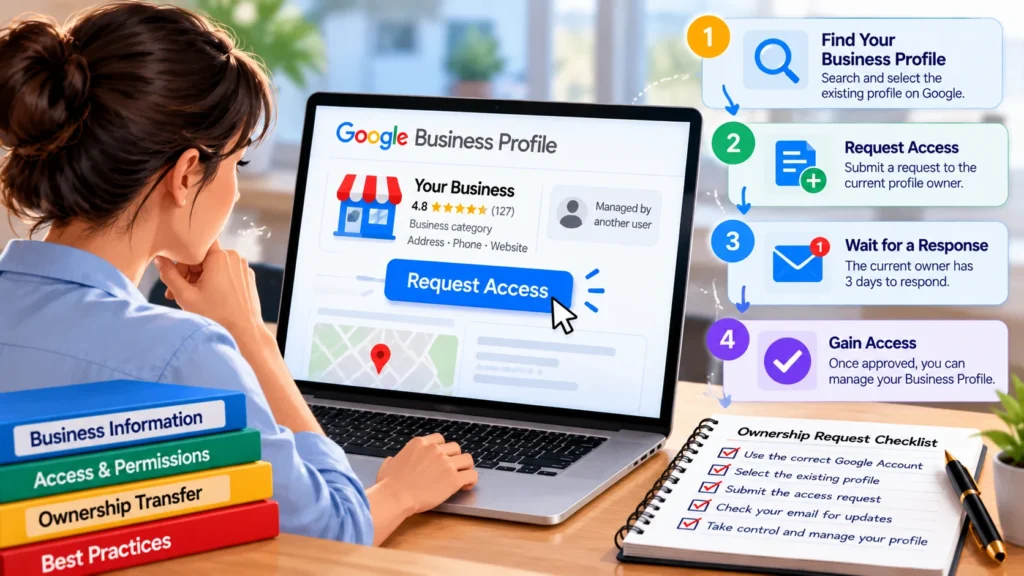
If your business already appears on Google Search or Google Maps but someone else controls the listing, you may need to request ownership of a Google Business Profile before you can manage its information, respond to reviews, or maintain its local search presence.
This situation can arise when a previous business owner created the profile, an employee set it up using a personal Google Account, an agency manages the listing, or ownership was never transferred after a business acquisition. In some cases, the business owner may not even know which account currently controls the profile.
The good news is that Google provides an official process for requesting ownership of an existing Business Profile. However, the correct steps depend on the type of business, the current ownership arrangement, and whether the existing owner responds to your request.
This guide explains how to request ownership, what happens after you submit the request, how to handle a rejection or no response, and what to do to protect your business’s long-term access.
What Does It Mean to Request Ownership of a Google Business Profile?
A Google Business Profile ownership request is a formal request to gain ownership of an existing business listing that is currently controlled by another Google Account.
Google Business Profile is the platform businesses use to manage how their information appears on Google Search and Google Maps. Depending on their access level, authorized users can manage business information, photos, posts, customer reviews, and other profile features.
When another person has already verified and owns your business’s profile, you generally should not create a second listing to regain control. Instead, you should use Google’s ownership request process.
Ownership Is Different From Manager Access
Google Business Profile supports different access roles, including owners and managers. These roles do not all provide the same permissions.
An owner can manage access for other users and perform ownership-related actions that a manager may not be able to perform. A manager can handle many routine profile management tasks but does not have every ownership permission.
If you only need an employee or marketing agency to update business information, respond to reviews, or maintain the listing, manager access may be sufficient.
If you are the business owner and need control over the listing itself, you should establish the appropriate ownership arrangement instead of relying indefinitely on another person’s account.
Ownership of a Profile Is Not the Same as Legal Ownership of a Business
Requesting a Google Business Profile does not transfer the legal ownership of a company, its assets, or its brand.
The process concerns control of the business listing on Google’s platform. Google may require you to verify your affiliation with the business or provide information supporting your request.
Only the actual business owner or an authorized representative should request and manage the profile. If you work for an agency, obtain the business owner’s authorization before taking ownership-related actions.
Before You Request Ownership, Check Whether You Already Have Access
Before starting an ownership request, confirm that the listing is actually controlled by someone else.
You may have signed in with a different Google Account from the one used to create the profile. This is particularly common when a business has several employees, former agencies, or multiple accounts used for marketing.
Step 1: Check Your Google Accounts
Sign in to the Google Accounts you or your business may have used to manage the listing.
Search for your business on Google Search or Google Maps and look for the available management controls. If you see an indication that you already manage the Business Profile, you may have access through the account you are using.
If the profile is not visible in one account, check other legitimate business accounts before assuming that ownership is unavailable.
Step 2: Search for the Existing Business Profile
Find your business using its actual name and location.
Check that the listing represents the correct business. Similar business names, former locations, and duplicate listings can make it easy to select the wrong profile.
Compare the address, telephone number, website, and other identifying information before proceeding.
Step 3: Determine Whether You Need Ownership or Manager Access
If an employee or agency already owns the profile and is willing to cooperate, asking them to grant the appropriate access or transfer ownership may be the simplest solution.
If the current owner is unknown, unavailable, or unwilling to cooperate, Google’s formal ownership request process may be necessary.
The objective is to gain legitimate control of the existing listing, not to create a competing profile for the same business.
How to Request Ownership of a Google Business Profile
For a storefront or hybrid business, Google provides an official process for requesting ownership from the current profile owner.
Follow these steps carefully.
Step 1: Open Google’s Business Profile Add Page
Visit the official page:
Google Business Profile — Request Ownership
Sign in with the Google Account you want to use to manage the business.
Use an account controlled by the business owner or an appropriately authorized representative. Avoid relying on an employee’s personal account if a business-controlled account is available.
Step 2: Enter Your Business Name and Address
Enter the business name and address, then select the correct existing profile from the results.
Make sure the listing corresponds to the business you are authorized to manage. Do not select another business with a similar name or create a new profile simply because the existing one is controlled by another person.
If the profile does not appear in the results, stop and investigate the issue rather than automatically creating a duplicate listing.
Step 3: Select the Existing Business Profile
After selecting the listing, Google may display a message indicating that someone else may manage the Business Profile.
This message means that another account already controls the listing. It does not automatically mean that the listing is invalid or that the current owner has done anything wrong.
If the profile is the correct one and you are authorized to manage the business, continue with the ownership request process.
Step 4: Choose “Request Access”
Select Request Access when the option appears.
Google will provide a form for requesting access to the existing profile. Complete the required information accurately.
Make sure the information identifies the correct business and explains your legitimate relationship to it. If you are the owner, provide the relevant owner information. If you are acting on behalf of the owner, ensure that you have permission to do so.
The available fields and interface wording may change, so follow the instructions shown in your Google Account.
Step 5: Complete and Submit the Request
Review the form before submitting it.
Check that the business name and other identifying details are accurate, that you selected the correct listing, and that your request reflects your actual authority to manage the business.
Select Submit to send the request.
Google will send you a confirmation email, and the current profile owner will be notified by email.
Keep the confirmation email. You may need it to check the request status or follow the next steps if the owner does not respond.
What Happens After You Request Ownership?
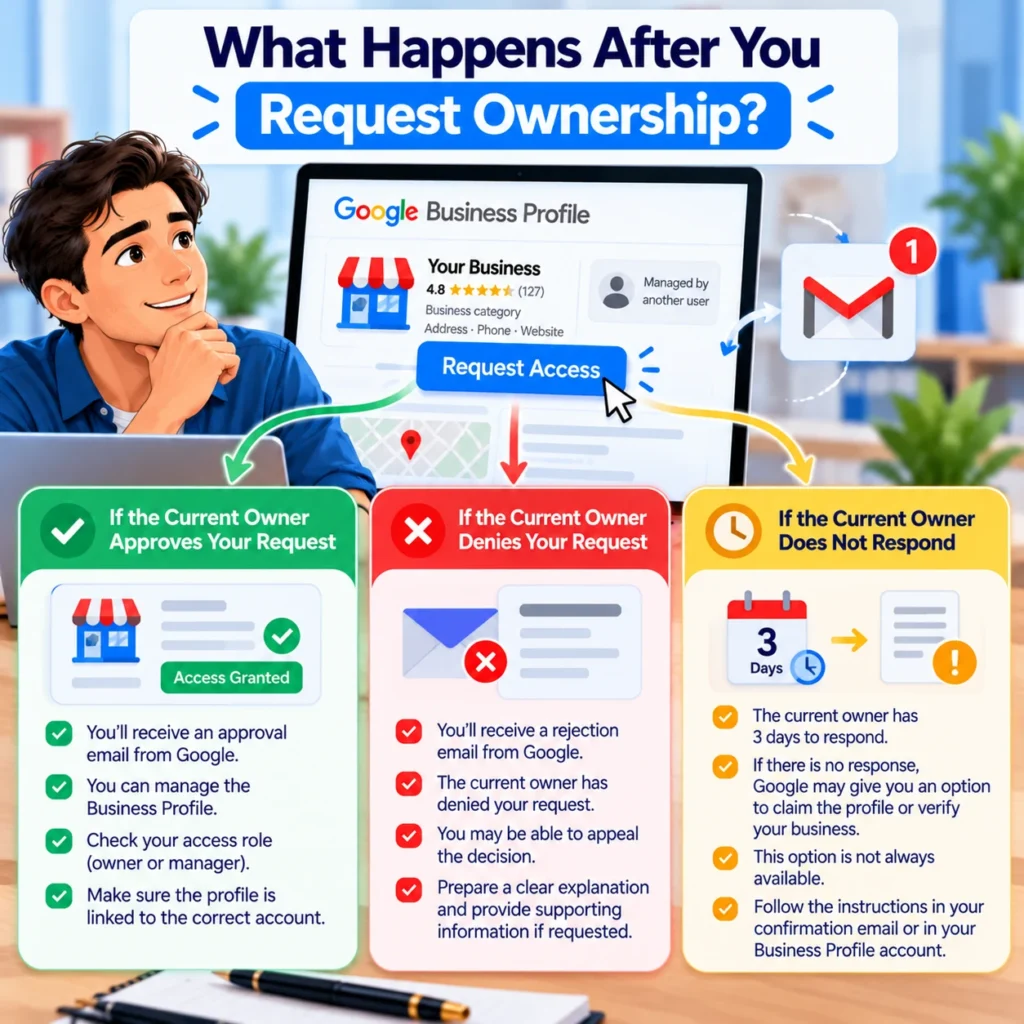
Submitting the request begins a process in which the current owner has an opportunity to respond.
According to Google’s official guidance, the current profile owner has 3 days to respond. You can check the status by signing in to your Business Profile or using the link in the confirmation email.
The result generally falls into one of three situations.
If the Current Owner Approves Your Request
If the request is approved, Google sends an approval email and you can manage the Business Profile using the access granted.
After receiving access, confirm your role and make sure the profile is associated with an account that the business can maintain.
If the business needs permanent control, review the ownership arrangement and ensure that the appropriate business representative holds the necessary permissions.
Do not assume that approval automatically gives you every possible permission. Check the role assigned to your account and whether any ownership transfer is still needed.
If the Current Owner Denies Your Request
If the current owner denies the request, Google sends a rejection email.
A rejection does not necessarily establish that you are not the legitimate business owner. It means the request was denied through the ownership process.
Depending on the case, Google may allow you to appeal the decision. Follow the options provided in the rejection notice or official support process.
Prepare a factual explanation of your relationship to the business and provide relevant supporting information if requested. Avoid repeatedly submitting identical requests without addressing the situation.
If you believe the rejection is incorrect, review Google’s instructions and determine which formal option is available for your case.
If the Current Owner Does Not Respond
If the current owner does not respond within 3 days, Google may provide an option to claim the profile or proceed with verification.
However, the option to claim the profile is not always available. The next step depends on the options Google makes available for that listing and request.
If the option appears, open the original confirmation email, select the link to view your request, and follow the available verification instructions. You may also see a Claim or Verify option when you sign in to your Business Profile.
Follow the on-screen instructions carefully. Do not assume that the passage of 3 days automatically transfers ownership or guarantees that verification will be offered.
If no suitable option appears, use the official Google Business Profile Help process to determine the next step.
How to Request Ownership of a Service-Area Business Profile
A service-area business travels to customers or delivers services at their locations rather than serving customers at a public business address. Examples may include plumbers, electricians, mobile repair businesses, and certain home-service providers.
Google’s ownership instructions distinguish service-area businesses from storefront and hybrid businesses.
For a service-area Business Profile that does not have a physical shop or office customers can visit, Google directs users to contact support rather than simply following the standard storefront process.
When contacting Google, look for the relevant ownership-transfer option. Google’s instructions identify “Transfer ownership of listing” as the issue description to select.
Explain the situation accurately and follow the steps provided by Google. The available support options may vary according to the business and the issue.
Do not add a false storefront address or change your business model simply to make the standard ownership request form appear.
What Documents Can Help Support an Ownership Request?
Not every ownership request requires you to upload documents. Start with the official request process and provide the information Google asks for.
If ownership is disputed, the listing information is inconsistent, or Google requests further verification, relevant business records may help establish your connection to the business.
Depending on the circumstances, useful records may include:
- Business registration documents.
- A current business license, where applicable.
- Tax documents identifying the business.
- Utility bills associated with the business location, where relevant.
- Official business records showing the correct name and address.
- Evidence that you are authorized to represent the business.
- Documentation relating to a recent business acquisition, where relevant.
The appropriate evidence depends on the actual issue. A document that proves the business exists does not necessarily establish that a particular person is authorized to control its Google Business Profile.
Make sure all documents are genuine and that the information is consistent with the business details provided to Google. Never alter documents or invent information to support a request.
For additional context about organizing legitimate business records, see Google Business Profile reinstatement evidence. That guide concerns reinstatement evidence, so use only the parts relevant to your ownership situation; a suspension appeal and an ownership request are separate processes.
Common Problems When Requesting Business Profile Ownership
The process may not work as expected in every case. Understanding the likely problem can help you choose the correct next step.
The Existing Profile Does Not Appear
If you cannot find the listing through the ownership request page, check the business name, address, and spelling. Search for the existing profile on Google Search or Maps as well.
If the profile appears publicly but is not available for selection, avoid creating a replacement listing immediately. Follow Google’s support process to investigate why the existing profile cannot be selected.
You Cannot Find the “Request Access” Option
First, confirm that you selected the correct existing listing and signed in to the appropriate Google Account.
The interface and available options may depend on the profile’s circumstances. For a service-area business, Google’s instructions direct users to contact support for ownership transfer.
If you still cannot find the option, use the official Google Business Profile Help resources instead of trying unrelated workflows.
The Current Owner Is a Former Employee or Marketing Agency
If a former employee or agency controls the listing, contact them and request cooperation if possible.
Explain that the business needs appropriate ownership and access. If the relationship has ended, ask for a proper transfer rather than sharing passwords or taking control of someone else’s Google Account.
Google’s guidelines for authorized representatives state that representatives should work with the business owner and transfer profile ownership to the business owner when requested. If cooperation is not possible, use Google’s formal ownership process.
The Business Was Recently Sold or Acquired
If you acquired an existing business, first determine whether the transaction includes the right to manage the relevant business listing.
Contact the previous owner to arrange a proper transfer where possible. If they are unavailable or refuse to cooperate, follow Google’s ownership request process and provide truthful documentation if requested.
A business acquisition does not mean you should automatically create a second listing for the same business. The correct approach depends on whether the existing profile still represents the same eligible business and how the ownership transition occurred.
The Profile Is Suspended or Disabled
An ownership request and a suspension appeal solve different problems.
An ownership request concerns who is authorized to control the profile. A suspension or disablement concerns a restriction imposed on the profile or associated account.
If your profile is disabled, investigate that restriction separately and use the applicable appeal process. Read Google Business Profile disabled without warning for guidance on investigating possible causes and identifying the next steps.
Do not assume that gaining ownership will automatically reinstate a suspended profile, or that appealing a suspension will automatically transfer ownership to you.
How to Protect Your Business’s Ownership in the Future
Once you gain legitimate control of the listing, establish a clear ownership and access arrangement.
Keep the Primary Business Owner in Control
Whenever possible, the actual business owner should maintain control of the Business Profile and grant access to employees, contractors, and agencies according to their responsibilities.
This reduces the risk of losing access when a staff member leaves or an agency contract ends.
Use Individual Google Accounts
Give authorized users access through their own Google Accounts rather than sharing a single password.
This makes it easier to manage permissions and remove access when someone’s role changes.
Review Owners and Managers Periodically
Check who has access to the profile and whether each person still needs it.
Remove or update permissions when employees leave, agencies are replaced, or responsibilities change. Keep ownership arrangements documented so that the business knows which account controls the listing.
Establish a Transfer Process for Agencies
If you hire an agency to manage your profile, agree in advance who owns the listing and how access will be handled when the relationship ends.
The business should understand how to access its profile and should not depend entirely on an external provider’s personal account.
Keep Business Information Accurate
Maintain accurate business information and follow Google’s Business Profile guidelines. Accurate details and clear ownership arrangements can help prevent avoidable confusion when the profile needs to be verified or managed.
Frequently Asked Questions
How do I request ownership of a Google Business Profile?
For a storefront or hybrid business, go to business.google.com/add, enter your business name and address, select the existing profile, choose Request Access, complete the form, and submit it. Follow Google’s separate support instructions for service-area businesses without a customer-facing location.
How long does a Google Business Profile ownership request take?
Google states that the current owner has 3 days to respond. If there is no response, a claim or verification option may become available, but this is not guaranteed for every profile.
Can I request ownership if the previous owner no longer works at the business?
Yes, you can use Google’s formal ownership request process if you are authorized to manage the business. If the previous owner does not respond, check the options provided in your confirmation email and follow Google’s next steps.
What happens if the current owner rejects my request?
You will receive a rejection email. Depending on the case, Google may allow you to appeal the decision. Review the available instructions and provide relevant, truthful information about your authority to manage the business.
Can I request ownership without business documents?
The standard process begins with an online request, and documents are not necessarily required in every case. If Google requests verification or further evidence, provide the genuine records relevant to your business and circumstances.
Should I create a new Business Profile if I cannot access the existing one?
Do not create a duplicate merely to bypass an ownership issue. First confirm that the existing listing represents your business and investigate the available ownership or support process.
Can an SEO agency own my Google Business Profile?
An agency may be an authorized representative and can manage a profile with appropriate permissions. However, Google advises authorized representatives to work with the business owner and transfer ownership to the business owner when requested. The business should retain appropriate control over its listing.
Final Thoughts
If someone else controls your business listing, requesting ownership of a Google Business Profile is usually the appropriate starting point. Confirm that you have selected the correct listing, submit the request through Google’s official process, and monitor the confirmation email for the next steps.
If the current owner approves, verify that you have the appropriate permissions. If the request is denied or receives no response, follow the options Google provides rather than creating a duplicate listing or attempting to access another person’s account.
Once ownership is established, keep the profile under the control of the business owner and grant employees or agencies only the access they need.
If you need help understanding an ownership conflict or organizing the next steps, MapRepute can help review the situation and explain the available options. Any ownership decision, verification, or transfer remains subject to Google’s process and requirements.
