
After submitting an appeal for a suspended or disabled Google Business Profile, one of the first questions is whether Google has reviewed the case and made a decision. You may have already corrected your business information, gathered supporting documents, and explained why your profile should be reinstated. Now, you need to know what happens next.
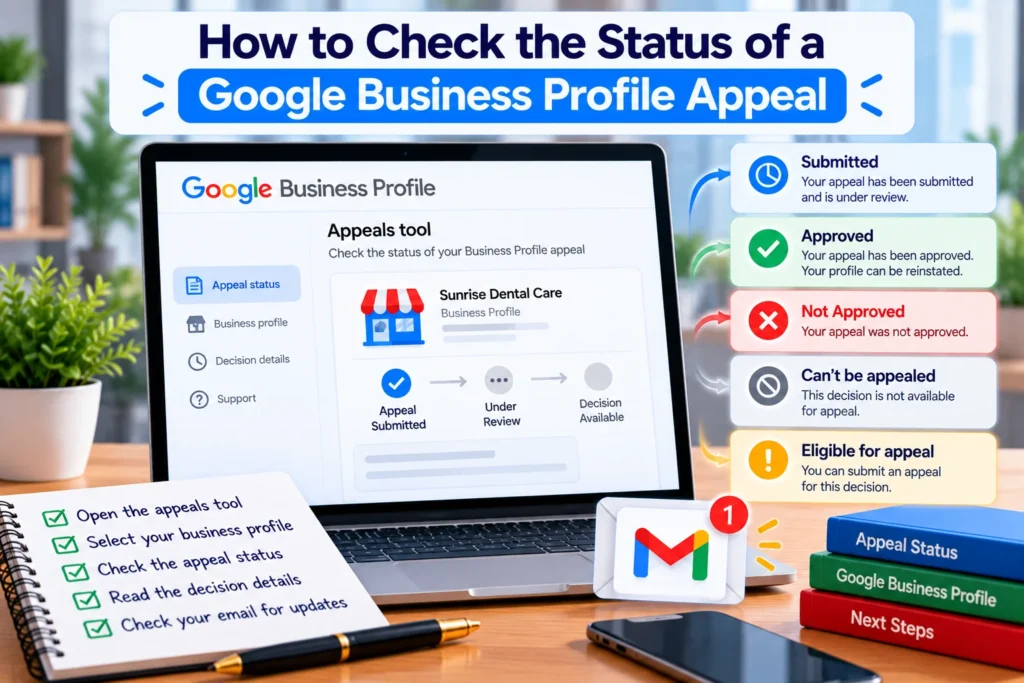
The most direct way to check the status of a Google Business Profile appeal is to use Google’s official Business Profile appeals tool. After signing in to the Google Account associated with your profile, you can select the relevant Business Profile and review the status displayed for your appeal.
Depending on your case, the tool may show a status such as Submitted, Approved, Not Approved, Can’t be appealed, or Eligible for appeal. Each status has a different meaning, and understanding the difference can help you decide whether to wait, review the decision, or investigate an available next step.
This guide explains how to check your Google Business Profile appeal status, interpret the available results, troubleshoot common problems, and avoid actions that could complicate an appeal that is already under review.
How to Check the Status of a Google Business Profile Appeal
You do not need to submit another appeal simply to find out what happened to your existing one. Start by checking the appeal associated with the affected profile.
Step 1: Open Google’s Official Appeals Tool
Go to the Google Business Profile appeals tool.
This is Google’s official resource for checking the status of eligible appeals involving Business Profile restrictions and related moderation decisions. For suspended or disabled profiles, Google also provides instructions in its Fix Suspended or Disabled Profiles help article.
Use the Google Account associated with the affected Business Profile. If you manage several businesses or use more than one Google Account, make sure you are checking the correct account.
Step 2: Sign In to the Correct Google Account
The account you use matters because the appeals tool needs to identify the relevant Business Profile and its appeal information.
If the tool displays an account confirmation screen, confirm that you are using the correct account. If necessary, switch accounts and try again.
Before continuing, check that:
- You are signed in to the Google Account associated with the affected profile.
- You have selected the correct business.
- You are checking the appeal for the intended profile rather than another location.
- You have not confused a profile restriction with a separate account-access or verification issue.
If the correct profile does not appear, do not immediately assume that Google has rejected your appeal. First, verify the account and the profile you selected.
Step 3: Select the Business Profile You Appealed
Once you are signed in, select the Business Profile associated with the appeal you submitted.
If you manage multiple locations, pay particular attention to the business name and location. An appeal status displayed for one profile should not automatically be interpreted as the status of every other profile you manage.
Google explains that the status shown in the appeals tool changes for the profile selected in the tool. For appeals involving multiple locations, you should check the relevant profile rather than assuming that a single result applies to the entire group.
Step 4: Locate the Appeal Status
After selecting the appropriate profile and appeal, look at the status displayed on the right side of the appeals tool.
Google identifies several possible statuses:
- Submitted
- Approved
- Not Approved
- Can’t be appealed
- Eligible for appeal
The wording tells you where the appeal stands or whether another appeal action is available. It does not necessarily provide a detailed explanation of every internal review step.
Record the displayed status and review any accompanying decision details. If Google provides a reason for its decision or links to a relevant policy, use that information to determine the appropriate next step.
Step 5: Check Your Email for Google’s Decision
Google states that it will send an email with the appeal decision. Check the inbox associated with the Google Account used for the appeal.
If you cannot find the message, review your spam or junk folder and confirm that you are checking the correct email account.
The appeals tool and the email notification serve complementary purposes: the tool lets you review the displayed status, while the email communicates Google’s decision.
Avoid relying solely on an old email if the appeals tool now shows a different status. Review the current information available for the specific profile and appeal.
What Do the Google Business Profile Appeal Statuses Mean?
Understanding the status is more useful than repeatedly refreshing the tool without a plan. The following table explains how to interpret the main statuses and what to do next.
| Appeal status | What it indicates | Recommended next step |
|---|---|---|
| Submitted | The appeal has been submitted. A final decision may not yet be available. | Monitor the tool and email for an update. |
| Approved | The appeal decision has been approved. | Follow any instructions provided and verify the profile’s status. |
| Not Approved | The appeal was not approved. | Review the decision and determine whether an additional review is available. |
| Can’t be appealed | The selected decision is not available for appeal through the tool. | Review the decision details and official guidance for other applicable options. |
| Eligible for appeal | The tool indicates that the selected decision is eligible for an appeal action. | Review the decision carefully and follow the available instructions if you have not already submitted the relevant appeal. |
These labels should be interpreted in the context of the selected profile and decision. The status alone does not guarantee a particular reinstatement outcome or indicate exactly how long any remaining review will take.
What Does “Submitted” Mean?
Submitted means that your appeal has been submitted. It does not mean that the appeal has been approved, and it should not be treated as a rejection simply because the profile remains unavailable.
If the status is Submitted, the most appropriate next step is generally to monitor the appeal and wait for Google’s decision.
During this period, avoid submitting another appeal for the same issue before receiving a decision. Google’s official guidance warns against submitting multiple appeals for the same issue while waiting for the result.
You can use the waiting period to keep your business records organized and make sure you can access the account and correspondence associated with the appeal. However, avoid making unnecessary profile changes or creating another profile as a workaround.
What Does “Approved” Mean?
Approved indicates that the appeal decision has been approved.
If your appeal concerned a suspended or disabled profile, check whether the profile has been reinstated and whether you can access it normally. Follow any instructions in Google’s decision email.
If the status is Approved but the profile still appears unavailable, do not immediately submit another appeal. Confirm that you selected the correct profile, review the decision message, and check the profile’s current state.
An approved appeal should be distinguished from an appeal that is still pending or one that was rejected. If the tool and the visible profile appear inconsistent, use Google’s official help channels to clarify the situation.
What Does “Not Approved” Mean?
Not Approved means that the appeal was not approved.
At this stage, reviewing the decision is more useful than immediately repeating the original submission. Check whether Google has identified a policy concern, whether the explanation you provided addressed that concern, and whether the supporting documents were relevant to the affected business.
If an additional review is available, consider whether you have relevant evidence or information that was not included in the original appeal.
For a detailed explanation of the next steps, read our guide on what to do after a Google Business Profile appeal is denied.
Do not assume that every rejected appeal can be appealed indefinitely. Available options depend on the decision and the eligibility information displayed by Google.
What Does “Can’t Be Appealed” Mean?
Can’t be appealed means that the selected decision is not available for appeal through the tool.
This status does not, by itself, explain every reason why the decision is unavailable for appeal. Review the information displayed alongside the decision, including any relevant policy link or instructions.
Make sure you have selected the correct profile and decision. If you believe that you selected the wrong item or that your situation is not represented correctly, consult Google’s official help guidance to determine whether another support route applies.
Do not create another Business Profile for the same business or repeatedly submit the same appeal in an attempt to bypass the displayed restriction.
What Does “Eligible for Appeal” Mean?
Eligible for appeal indicates that the selected decision is eligible for an appeal action in the tool.
It does not mean that an appeal has already been approved. If you have not yet submitted the appeal for that decision, review the available instructions and determine whether you are ready to proceed.
If you believe you already submitted an appeal for the same issue, verify that you are viewing the correct profile and decision before taking further action. The status may relate to a different decision or profile than the one you intended to check.
How Long Does It Take for a Google Business Profile Appeal Status to Update?
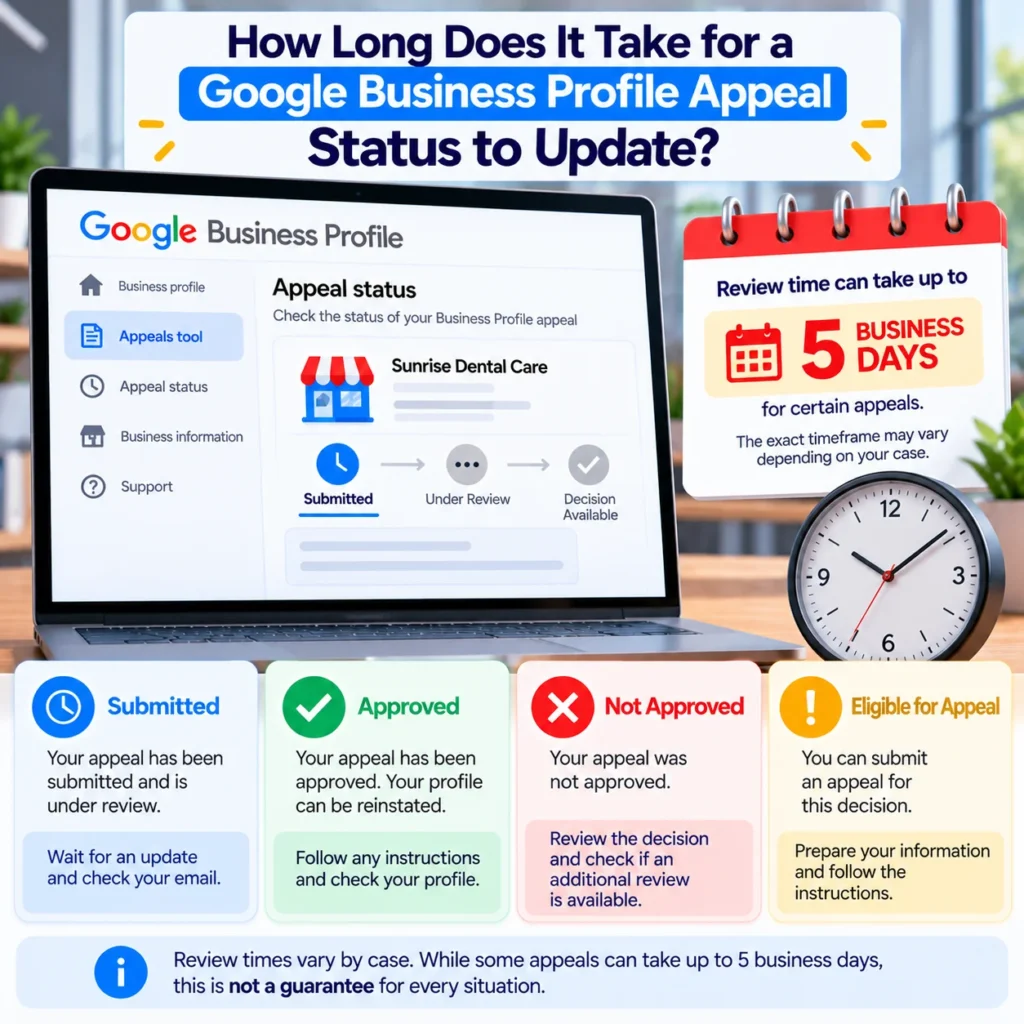
There is no single turnaround time that should be assumed for every Business Profile appeal.
The time required can depend on the type of decision, the circumstances of the case, and the review process applicable to it. Google provides status information through the appeals tool and communicates the decision by email.
For certain appeals involving Business Profile content and profile restrictions, Google’s guidance states that review and decisions can take up to five business days. That timeframe should not be treated as a universal guarantee for every suspended-profile reinstatement case.
If your status remains Submitted, consider the following:
- Check the elapsed time. Note the date you submitted the appeal and distinguish business days from calendar days when relevant.
- Check the appeals tool again. Review the current status for the correct profile and decision.
- Check your email. Look for a decision or request related to the appeal.
- Review the instructions for your specific case. Follow the timeframe and next steps Google provides, if any.
- Avoid duplicate submissions. Do not send another appeal for the same issue before receiving a decision.
A status that has not changed does not, on its own, prove that Google has ignored the appeal or that the appeal will be rejected.
What to Do If Your Google Business Profile Appeal Status Has Not Changed
If the appeals tool continues to show Submitted, focus on verifying the information you can access rather than trying random fixes.
Confirm That You Are Checking the Correct Appeal
If you manage multiple profiles or have had more than one moderation decision, make sure the selected appeal corresponds to the suspended profile you are concerned about.
Check the business name, location, and decision details. A status for a different profile or decision will not reliably tell you what is happening with the appeal you intended to check.
Review the Original Submission
Check your records to confirm when the appeal was submitted and what information you provided.
If you saved the submission confirmation or supporting documents, keep them available for reference. These records can help you explain the case accurately if you later need to contact support or respond to an available additional-review process.
Do not submit a second appeal merely because you cannot remember whether the first one went through. First, inspect the tool and any confirmation or decision emails available to you.
Check Your Email Thoroughly
Search your inbox for messages related to Google Business Profile, your appeal, or the affected business.
Check spam and junk folders, and make sure you have not overlooked a decision email sent to another account associated with your business.
If the appeals tool displays a decision but you cannot find the corresponding email, rely on the current tool information and consult the official help guidance if you need clarification.
Do Not Make Unnecessary Changes While Waiting
Avoid repeatedly changing the business name, address, category, or other profile information simply to see whether the status changes.
Changes should be based on a specific, legitimate correction—not an attempt to influence the appeal status. Similarly, do not create a duplicate profile to replace the suspended one while the appeal is under review.
If you identify a genuine policy issue, review the applicable guidance and the instructions for your case before taking action.
Determine Whether Further Support Is Appropriate
If the status remains unchanged beyond the timeframe communicated for your case, review the official help resources to determine whether a support option is available.
When contacting support, explain the situation factually. Include the business name, the profile concerned, the date the appeal was submitted, and the status currently displayed, where appropriate.
Do not assume that contacting support will automatically accelerate the appeal or guarantee a different decision.
Why You Might Not See Your Appeal Status
Sometimes the main problem is not the status itself but difficulty locating the correct appeal information.
You Are Signed In to the Wrong Google Account
If you manage the profile through a different Google Account, the tool may not display the appeal you expect.
Switch to the account associated with the affected profile and check again.
You Selected the Wrong Business Profile
Businesses with multiple locations can have separate profiles and decisions. Confirm the correct location before interpreting the result.
If you submitted appeals for multiple profiles, remember that the status shown in the tool applies to the profile selected there. Do not assume that a single status reflects all locations.
The Decision Is Not Available for Appeal
The tool may display Can’t be appealed for a selected decision. Review the decision details and official instructions to determine whether another applicable support route exists.
The absence of an appeal option should not be interpreted as proof that every possible support option has been exhausted. Equally, it does not mean that an alternative appeal route is guaranteed to be available.
You Are Confusing a Suspension Appeal With Another Type of Issue
A Business Profile suspension is different from a rejected profile edit, a verification issue, a restriction on specific content, or a problem accessing the account.
The applicable procedure depends on the type of decision. Identify what Google actually restricted or rejected before deciding what to do next.
If your profile was suspended without an obvious explanation, our guide to Google Business Profile disabled without warning explains how to approach the initial investigation.
What to Do After Your Appeal Is Approved or Denied
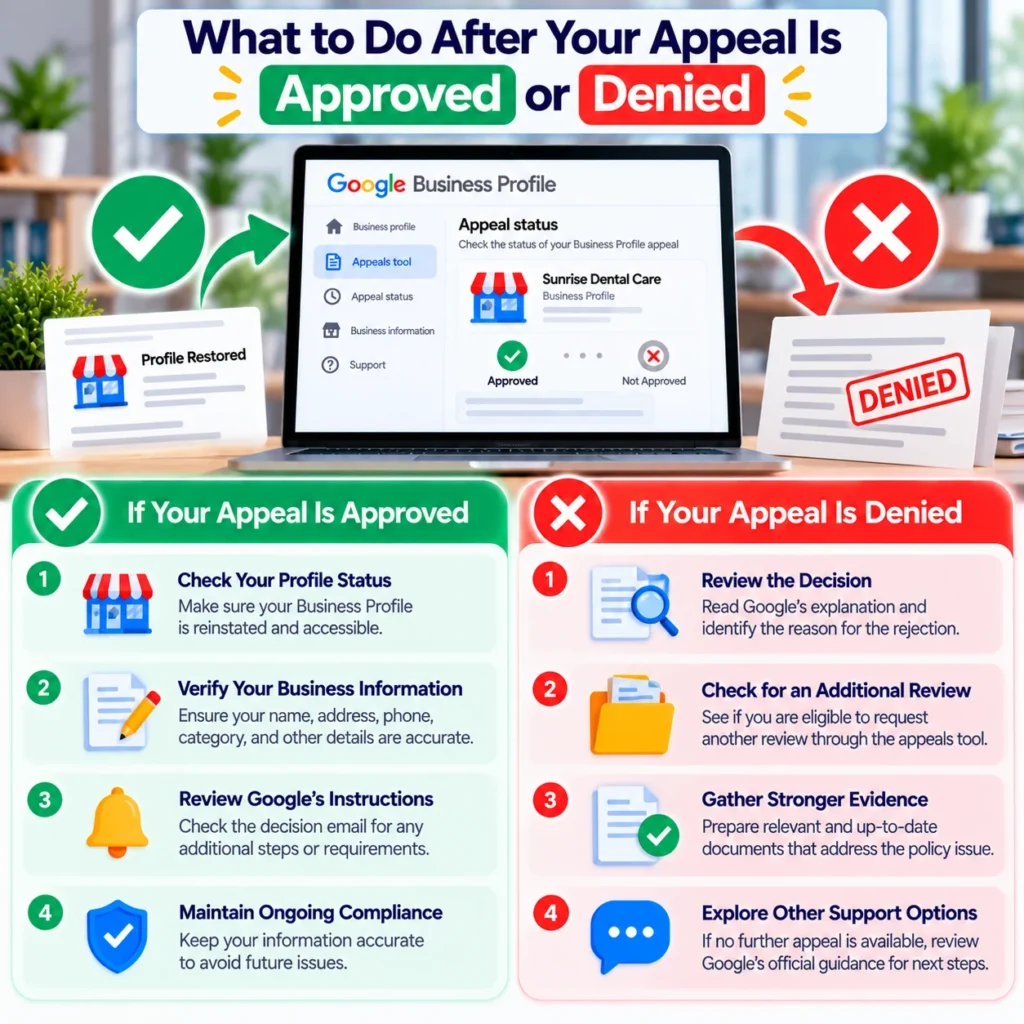
Checking the status is only useful if you understand what the result means for your next action.
If Your Appeal Is Approved
If Google approves the appeal, verify the profile’s current status and follow any instructions provided in the decision.
Once the profile is available again:
- Confirm that the business information is accurate.
- Review the profile for any remaining policy issues.
- Avoid unnecessary edits immediately after reinstatement.
- Keep records of the decision and relevant business documentation.
An approved appeal should not be treated as permission to ignore the guidelines in the future. Continue to maintain accurate business information and follow Google’s requirements.
If Your Appeal Is Not Approved
If the appeal is not approved, read the decision and identify any stated policy concerns.
Review whether your original explanation addressed the issue and whether the evidence supported the facts of the case. If Google offers an additional review and you are eligible, consider whether relevant new evidence can clarify the situation.
Google’s reinstatement guidance describes an additional-review option for certain denied requests. Availability depends on the case, so check the current instructions rather than assuming that every decision can be reviewed again.
For the detailed process, see what to do after a Google Business Profile appeal is denied.
If You Are Still Waiting
If the appeal remains Submitted, continue checking the tool and email for the decision.
Avoid sending duplicate appeals for the same issue before receiving a decision. Do not create a new profile for the same business as a workaround.
If the expected timeframe for your specific case has passed and no decision is available, review Google’s official support guidance for an appropriate next step.
Common Mistakes When Checking an Appeal Status
Several mistakes can make it harder to understand what is happening with your appeal.
Submitting multiple appeals for the same issue. Google advises users not to submit multiple appeals for the same issue before receiving a decision. Check the existing appeal first.
Assuming Submitted means rejected. Submitted indicates that the appeal has been submitted; it is not the same as Not Approved.
Treating Eligible for appeal as an approval. Eligibility indicates that an appeal action is available, not that reinstatement has been granted.
Checking the wrong profile. If you manage several businesses, confirm the selected profile and decision before drawing conclusions.
Relying only on email. Review the appeals tool as well as the decision email so that you are checking the status shown for the relevant profile.
Creating a duplicate profile. Do not create a new Business Profile for the same business to work around an existing suspension or pending appeal.
Making speculative changes while waiting. Only correct information when you have identified a genuine issue and understand the relevant requirements.
Frequently Asked Questions
How do I check my Google Business Profile appeal status?
Sign in to the Google Account associated with the affected Business Profile, open Google’s official appeals tool, select the profile and relevant decision, and review the status displayed on the right. Google also sends an email with the appeal decision.
Is there an official Google Business Profile appeal status checker?
Yes. Google provides an official appeals tool for checking eligible Business Profile appeal statuses. Start with Google’s Appeal Business Profile content and profile restrictions help page for the current instructions.
What does Submitted mean in the Google Business Profile appeals tool?
Submitted means that the appeal has been submitted. It does not mean that the appeal has been approved or rejected. Check the tool and your email for an update, and avoid submitting another appeal for the same issue before receiving a decision.
How long does Google take to review a Business Profile appeal?
Review times vary by case and decision type. Google states that certain appeals involving Business Profile content and profile restrictions can take up to five business days. This is not a universal guarantee for every reinstatement appeal.
Will Google email me when my appeal is decided?
Google states that it will send an email with the appeal decision. Check the email account associated with the appeal, including spam or junk folders, and review the appeals tool for the status shown for your selected profile.
What does Not Approved mean?
Not Approved means that the appeal was not approved. Review the decision and determine whether Google provides an additional-review option or another applicable next step. Do not assume that an identical repeat submission will change the result.
Can I submit another appeal while my first appeal is pending?
You should not submit multiple appeals for the same issue before receiving a decision. Check the existing appeal’s status and follow Google’s instructions for the case.
What if my appeal status is missing from the tool?
First, verify that you are signed in to the correct Google Account and have selected the correct Business Profile and decision. If the information remains unavailable, consult Google’s official help guidance to determine whether another support option applies.
Does an approved appeal mean my profile is already visible on Google?
An Approved status indicates that the appeal decision has been approved. Check the profile’s current status and follow any instructions in Google’s decision email. If the profile still appears unavailable, verify that you selected the correct profile and consult official support guidance rather than submitting a duplicate appeal immediately.
Can I create a new Business Profile while waiting for my appeal?
No. Google warns against creating a new Business Profile for the same business as a workaround while an appeal is under review. Continue using the official process for the existing profile.
Need Help Understanding Your Google Business Profile Appeal?
If your appeal status is unclear, start by confirming that you are checking the correct profile and decision in Google’s official appeals tool. Then interpret the displayed status, review the decision email, and follow the next steps available for your specific case.
If your profile remains suspended or your appeal was not approved, a careful review of the business information, policy concerns, and supporting evidence may help you understand what needs attention. No third party can guarantee Google’s decision, and any further appeal or review must follow Google’s applicable process.
MapRepute can help assess Google Business Profile suspension and reinstatement issues, explain potential policy concerns, and help you understand the available options based on your circumstances.
